Showing posts with label Auto Save. Show all posts

Tuesday, December 12, 2006

Recover drawing data when all seems lost

This is a continuance to my previous post regarding "AutoCAD Automatic Save Feature".

Recovering Drawing Data 101... (AutoCAD 2005 Viewpoint)
1) If you press YES to save changes after a fatal error (assuming it gave you the chance) then a file is created with a "{file name}_recover.dwg" in the same directory as your closed file. Open a new AutoCAD session and run a recover (File>Drawing Utilities>Recover) on the new file. If it's successful REMEMBER to Save As on top of the old file and delete the "_recover.dwg" file. Don't work in the recovered drawing file.

If you can't recover your drawing then move onto # 2.

2) Rename your .bak file to "temp.dwg" and see if that is corrupted too. If that's gone then move onto # 3.

3) Go to your local AutoSave directory. Look for the "{file name}.sv$" file Refer to my previous post "AutoCAD Automatic Save Feature" to recover from that.

WHEN ALL ELSE FAILS you can open a New Blank drawing and Insert the corrupted file as a block. If this works you'll only get items in Model Space. Paper Space is kyboshed.

Tuesday, May 30, 2006

AutoCAD Automatic Save Feature

The automatic save feature explained... (AutoCAD 2005 TESTed)

I did some research regarding why Autosave does and doesn't save a backup on your local system.

We had an incident a few months ago where AutoCAD crashed a .dwg and corrupted the .bak file in the current drawing directory and didn't save a .sv$ in the temp local directory. Definition: FILE WAS TOAST and work was lost!!! :-(

To test this I set the time located in my Options to 1 min. because I didn't think that it saved a .sv$ file ever. It actually works even if you don't see it pop up in your command line. The thing to be aware of is that the .sv$ file gets deleted from your local directory when you successfully Exit your drawing file. This feature is designed to be used when AutoCAD exits abnormally, i.e. Fatal Error.

If your drawing crashes and you loose work attempt to rename the .bak file to a different name but use a .dwg extension. If your work is still not all there go to your local temp directory and look for your drawing name with the extension .sv$. Rename the extension to .dwg and open it to see if that recovers more data. You can compare Modified times as well. If the file doesn't exist, it only means that AutoCAD failed to perform as designed...

Sometimes AutoCAD will save a .bak file in your local directory along with .sv$ files. AutoCAD designed the autosave feature to delete the .sv$ after the second autosave and create a permanent .bak file. This is a Crap Shoot. I had it work on 2nd save then on the 3rd then it didn't do it at all on one of my tests. Another AutoCAD program failed to perform as designed... again...

The moral of the story is to, "SAVE Often"...

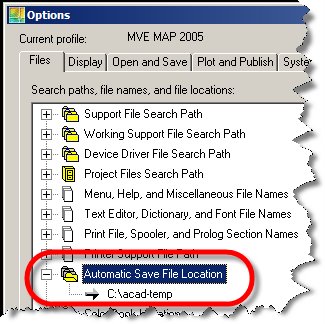
To find your temporary Autosave directory go to your options and under the Files Tab is an Autosave location.


For more information about recovering drawing data refer to my new post "Recover drawing data when all seems lost".